
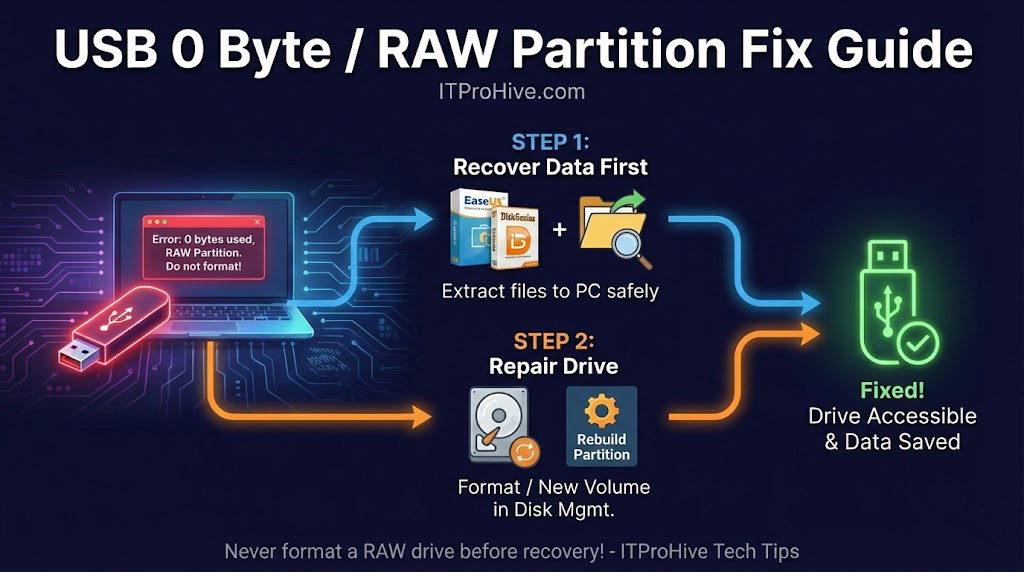
You plug your USB drive into your computer. You hear the familiar connection sound, and the drive icon appears in "This PC." But when you double-click to open it, you are greeted with an error message. Even worse, checking the properties reveals a terrifying sight: 0 bytes used, 0 bytes available.
Is your data gone forever? Is the drive trash?
Don't panic just yet. This is a common issue in the IT world, often classified as a "logical failure" rather than physical damage. In this guide, we will walk you through a professional diagnosis and repair process to save your files and revive your hardware.
1) Phase 1: The Diagnosis (Soft Error or Hard Failure?)
Before attempting any fixes, we need to look under the hood using Windows' built-in tools to see the drive's true status.
Right-click on "This PC" (or "My Computer") and select "Manage".
Click on "Disk Management" from the left sidebar.
Locate your USB drive in the right panel and observe its status:
Scenario A (The Good News): Shows "RAW" or Correct Capacity If you see a partition bar, but the file system says "RAW", or it shows the correct capacity (e.g., 32GB) but is inaccessible, your hardware is likely fine. The "Table of Contents" (Partition Table) is just corrupted. This is fixable.
Scenario B (The Bad News): Shows "No Media" or 0MB If Disk Management lists the device as "No Media" or shows the capacity as strictly 0MB, this usually indicates a physical failure of the controller chip or NAND flash memory. Software cannot fix this; you may need to replace the drive.
2) Phase 2: Data Recovery (The "Do Not Format" Rule)
⚠️ CRITICAL WARNING: Windows will likely pop up a message saying: "The disk in drive X is not formatted. Do you want to format it now?" Click CANCEL. Formatting will overwrite the file table and make data recovery significantly harder.
To recover files from a RAW partition, you need software that can bypass the Windows file system. We recommend two top-tier tools:
1. DiskGenius (Best for Tech-Savvy Users / Value) DiskGenius is a powerhouse for handling partition errors.
How it works: Download the free or standard version. Right-click the RAW partition and select "Recover Lost Files."
Verdict: It has powerful deep-scanning algorithms and allows you to preview files before recovery. It is highly effective for partition table issues.
2. EaseUS Data Recovery Wizard (Best for Beginners) If you want a simple experience, EaseUS is the industry standard for user-friendly recovery.
How it works: It features a wizard-style interface with just "Scan" and "Recover" buttons.
Verdict: Extremely easy to use, though the Pro version is pricier. Perfect if you want to save time and effort.
Note: Always save recovered files to your computer's hard drive. NEVER save them directly back to the corrupted USB drive!Phase 3: Repairing the Drive (Two Methods)
3) Phase 3: Repairing the Drive (Two Methods)
Once your data is safe, you need to reset the file system. Choose the method that works best for you:
Method 1: Standard Format (Recommended: The Easiest Way) This works for 90% of cases and is very fast.
Open "This PC", right-click on the inaccessible USB drive.
Select "Format...".
Click the "Restore device defaults" button (this automatically selects the best settings for your drive).
Click "Start". In a few seconds, your drive should be fresh and ready to use.
Method 2: Rebuild Partition (Advanced: The Deep Fix) Use this only if Method 1 fails (e.g., if you get a "Windows was unable to complete the format" error).
Go to "Disk Management", right-click the RAW partition, and select "Delete Volume".
Right-click the black "Unallocated" space and select "New Simple Volume". Follow the wizard to finish.
4) Summary
When facing the "0 Bytes" USB error, remember the golden rule: Recover data first, repair second, and never click Format immediately. With the right diagnosis and tools, 90% of RAW partition errors can be solved without losing your precious files.
Back to top
Comments