
There is nothing more frustrating than a desktop computer that suddenly goes black while you are working, or a PC that powers on (fans spinning) but shows "No Signal" on the monitor.
Before you panic or spend money on a repair shop, you should know that most black screen issues are caused by loose connections or minor hardware glitches that you can fix yourself. At itprohive.com, we believe in empowering users. Here is your step-by-step troubleshooting guide.
1) Phase 1: The Quick Checks (No Tools Required)
First, verify the status of your PC tower. Are the fans spinning? Is the power LED on? If the PC seems alive but the screen is dead, try these steps first.
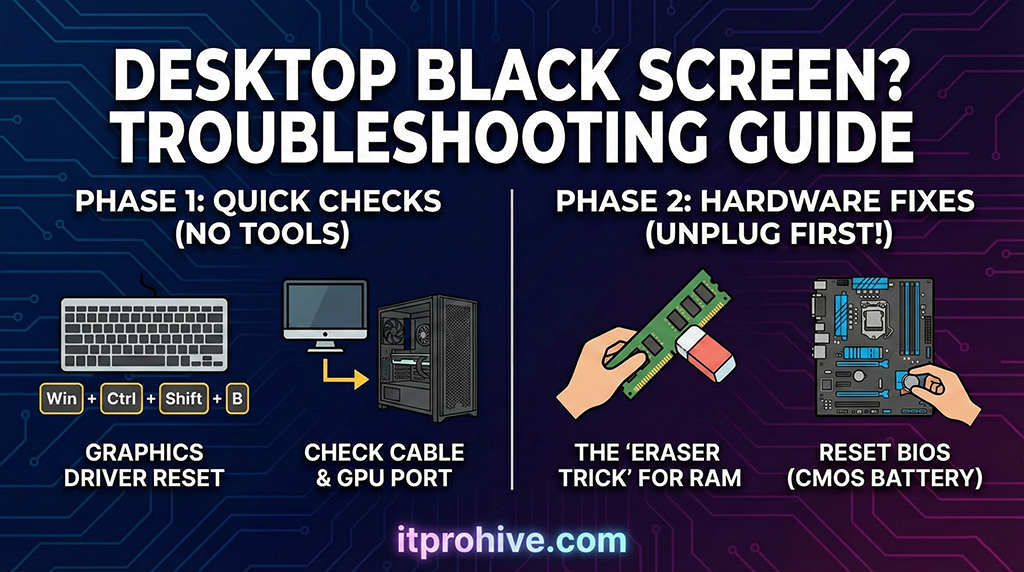
1.1) 1. The Magic Shortcut: Restart Your Graphics Driver
If Windows is running in the background but the video output has frozen, this shortcut is a lifesaver.
Action: Press
Win + Ctrl + Shift + Bsimultaneously.Result: You should hear a beep, and the screen may blink. This command forces Windows to restart the video driver without rebooting the computer.
1.2) 2. Check Your Connections (The Basics)
It sounds obvious, but it happens to the best of us.
Monitor Status: Is the monitor power light on? If it's amber or blinking, it has power but no signal.
The "GPU Trap": If you have a dedicated graphics card (GPU), ensure your HDMI or DisplayPort cable is plugged into the horizontal GPU port, not the vertical motherboard port.
2) Phase 2: Hardware Troubleshooting (The "Hands-On" Fixes)
If the quick fixes didn't work, and your PC turns on but shows nothing, the culprit is likely RAM oxidation or static buildup.
⚠️ Safety First: Always unplug the power cord from the wall before opening your PC case!
2.1) 3. The "Eraser Trick" for RAM (Most Likely Fix)
Over time, the gold contacts on your RAM sticks can oxidize, causing a bad connection.
Open your PC case side panel.
Release the clips and remove your RAM sticks.
Take a standard pencil eraser and gently rub the gold contacts (the "gold fingers") on the bottom of the stick.
Brush off any rubber debris and firmly push the RAM back into the slot until it clicks.
2.2) 4. Reset the BIOS (CMOS Battery)
Corrupted BIOS settings can prevent the display from initializing.
Locate the silver, coin-sized battery (CR2032) on your motherboard.
Remove it carefully, wait for about 60 seconds, and place it back in. This resets your BIOS to factory defaults.
3) Summary
In 80% of cases, simply reseating the RAM or checking your cables resolves the mystery of the black screen. However, if your motherboard makes beeping sounds or the issue persists after these steps, you may be dealing with a hardware failure (PSU or GPU) requiring professional replacement.
Stay tuned to IT Pro Hive for more practical tech tips!
Back to top
Comments