
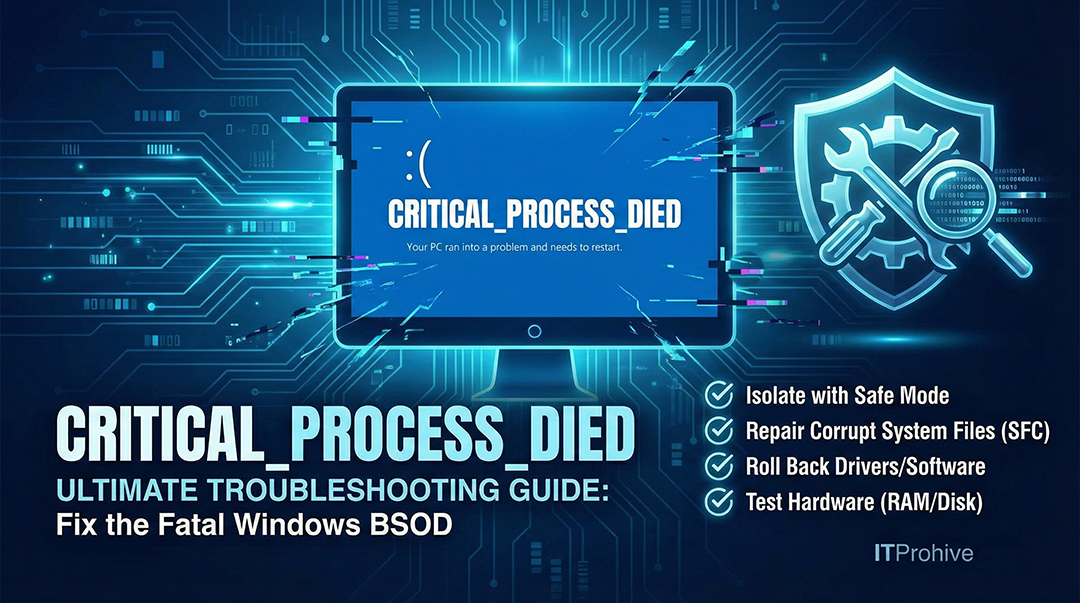
1) What is the CRITICAL_PROCESS_DIED Error?
When your Windows machine crashes and displays the classic "Blue Screen of Death" (BSOD) with the stop code CRITICAL_PROCESS_DIED, it indicates that a process that is absolutely vital for the operating system to function has terminated unexpectedly. To prevent further data corruption and system damage, Windows is forced to shut down.

2) Why Does This Error Occur? (Common Causes)
Identifying the root cause is the key to a successful repair. The CRITICAL_PROCESS_DIED error is frequently triggered by:
Incompatible or Corrupt Drivers: This is the leading cause. The error often follows a failed driver update or occurs when a peripheral driver (especially for graphics, chipset, or storage controllers) conflicts with the current Windows version.
Corrupt System Files: Essential Windows files needed for booting and running the OS may be damaged due to a virus, malware, or a sudden power loss.
Hardware Failures: Physical issues with hardware, such as faulty RAM (Memory) modules or bad sectors on your HDD/SSD, can prevent critical system processes from accessing necessary data.
Software Conflicts: Newly installed third-party antivirus software, optimization tools, or other programs may incorrectly interfere with core Windows processes.
3) Troubleshooting Steps for CRITICAL_PROCESS_DIED
If your PC crashes but can occasionally reboot back into Windows (sporadic crashes), follow the steps below. If the system is stuck in a boot loop, skip to Step 1 to force entry into Safe Mode.
3.1) Step 1: Isolate the Failure (Enter Safe Mode)
If the PC is crashing frequently, you must enter Safe Mode, which loads only the bare minimum of drivers and services.
Enter WinRE: Force the machine to shut down during the Windows loading screen (repeat 2-3 times) until it enters the "Automatic Repair" screen.
Launch Safe Mode: Select Troubleshoot → Advanced options → Startup Settings → Restart, then press 4 or F4 to enable Safe Mode.
3.2) Step 2: Check and Repair System Files
Once in Safe Mode (or if you can boot normally), use the System File Checker (SFC) to repair corrupt core files.
Open Command Prompt as an administrator.
Type the command:
sfc /scannowand let the scan complete.
3.3) Step 3: Roll Back or Uninstall Problematic Drivers/Software
If the BSOD occurred after a recent change:
Uninstall New Software: Remove any programs recently installed via the Control Panel or Settings app.
Roll Back Drivers: In Device Manager, find the recently updated device (e.g., Graphics Card), right-click to select Properties, go to the Driver tab, and select Roll Back Driver.
3.4) Step 4: Verify Hardware Health (RAM and Disk)
If the software fixes are ineffective, the problem may be hardware-related:
Check Disk: Run Command Prompt as an administrator, type
chkdsk /f /r, and agree to run the scan on the next reboot.Check Memory: Search for and open the Windows Memory Diagnostic tool and choose to restart and run the test.
4) Conclusion
The CRITICAL_PROCESS_DIED error is a critical sign of system instability. By methodically following a triage process—starting with software, moving to system file integrity, and finally checking hardware health—you can effectively diagnose and restore your Windows system.
Comments