
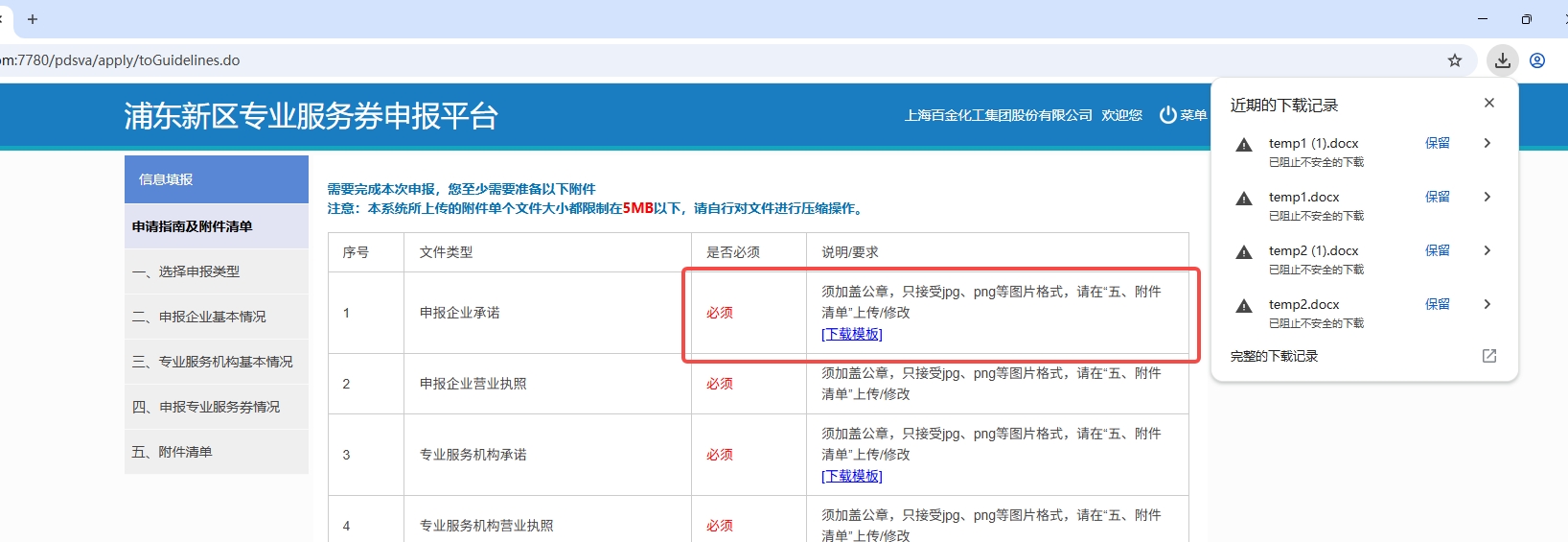
If you use modern web browsers like Chrome, Edge, or Firefox, you've likely encountered the message: "This download has been blocked because it's unsafe." This is your browser's built-in security mechanism protecting you from potential malware and viruses. While generally helpful, this feature can sometimes erroneously block legitimate files you trust, especially those served over older HTTP links. This post will explain why this happens and provide a step-by-step guide to safely bypassing the block.
1) Why Is My Download Being Blocked?
Browser security checks typically flag a download based on three main criteria:
- Insecure Connection / Mixed Content: The file is being downloaded via the unencrypted HTTP protocol, while the website you are on is using the secure HTTPS protocol. The browser views fetching a file from an insecure connection as a risk.
- Malware Blacklist: The browser compares the file against a database of known malware and viruses. If there's a match, or if the publisher has a poor reputation, the download is immediately halted.
- Uncommon File Warning: If the file type is rare, or the file has been downloaded by very few people globally, the browser may flag it as "potentially harmful" simply because it lacks reputation data.
2) How to Safely Bypass the Block
Bypassing the block doesn't mean you have to disable all security. The safest approach is to grant a temporary exception for a specific download, rather than permanently lowering your browser’s defenses.
Step 1: The Safest Way: Restore via Download Manager
This is the most recommended and lowest-risk method, working well for Chrome and Edge:
- Open the Downloads Page: Navigate to the browser's downloads page by pressing
Ctrl+J(Windows) orCmd+Shift+J(Mac). - Locate the Blocked File: Find the file in the list, which is usually grayed out or marked with a warning.
- Choose to Keep: Click the "Show More" or "..." menu next to the file name, then select "Keep" or "Keep Dangerous File."
- Final Confirmation: The browser will warn you again about the risks. Only proceed by clicking confirm if you are 100% certain the source of the file is trustworthy.
Step 2: Temporarily Adjust Security Settings (Caution Advised)
If you have many files to download or Step 1 doesn't work, you can temporarily modify the browser's security settings.
Example for Google Chrome:
- Click the three dots in the top-right corner $\rightarrow$ Settings.
- Go to Privacy and security $\rightarrow$ Security.
- Under "Safe Browsing," temporarily change the level from "Enhanced protection" or "Standard protection" to "No protection (not recommended)."
- After the download is complete, immediately switch back to "Standard protection" or "Enhanced protection" to maintain your daily browsing security.
Comments